
Netcorp EWD Driver Operation Guide
Last updated: 17 September 2025
The Netcorp EWD app will be made available through the Apple App Store and Google Play Store.
The minimum requirements for a device to run the Netcorp EWD app are:
- Apple iOS version 12.0 or greater; Android version 5 or greater
- Device must be fitted and active with a GNSS module for satellite positioning
- Active SIM for Mobile network connectivity
If the device does not meet operating system requirements the app may not be available to download from the Apple App store or Google Play Store, or you may receive an error message when trying to run the app on your device.
ANDROID Samsung Galaxy S6 or newer Samsung Galaxy Note 8 or newer Samsung Galaxy Z Flip Samsung Galaxy A-series Samsung Galaxy M-series Samsung Galaxy Tab A Series Samsung Galaxy Tab S Series Samsung Galaxy Tab Active Series Samsung Galaxy Tab E Samsung Galaxy Tab J Google Pixel 5 Netcorp – Topicon – MDT865 8” Netcorp – Topicon – MDT1065 10” APPLE iO Si Phone XS or neweri Pad Air (3rd gen, 2019 or newer)i Pad (7th gen, 2019 or newer)i Pad Mini (5th gen or newer)i Pad Pro (3rd gen or newer) Netcorp is currently awaiting device agnostic approval so you will be able to eventually use our Netcorp EWD app on any compatible device that meets the minimum requirements .
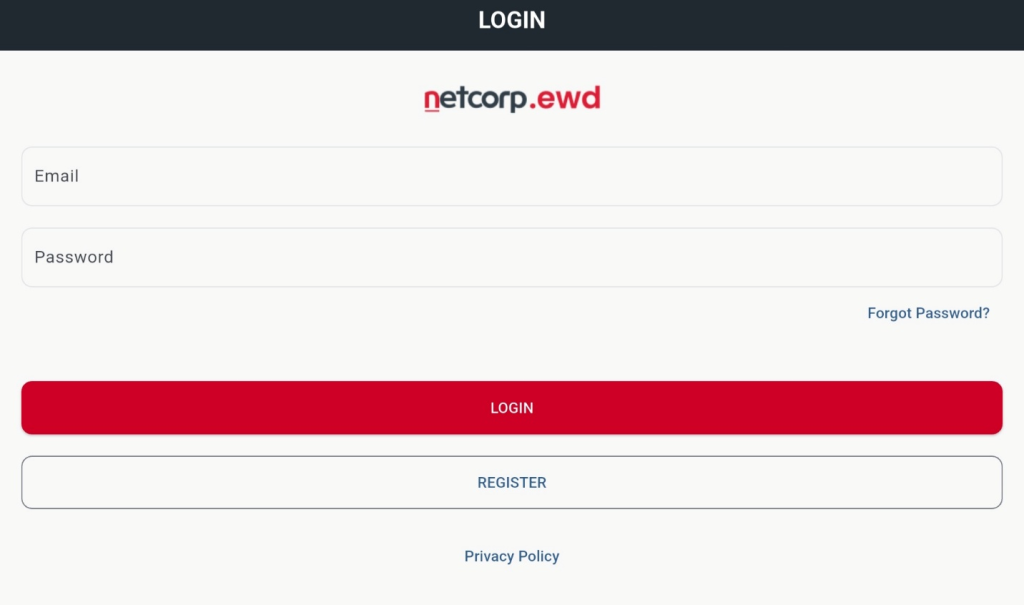
After downloading and installing the EWD app you can register as a driver by pressing Register on the login screen.
Fill all required fields and proceed, you will receive an email containing a One-Time code to verify, once this is done your driver account will be ready to log in. You may also receive a One-Time SMS code to verify your Mobile number.
Alternatively, your Operator may have already registered you as a driver via the web portal and provided you with a password.
Login to the EWD app using your email and password.
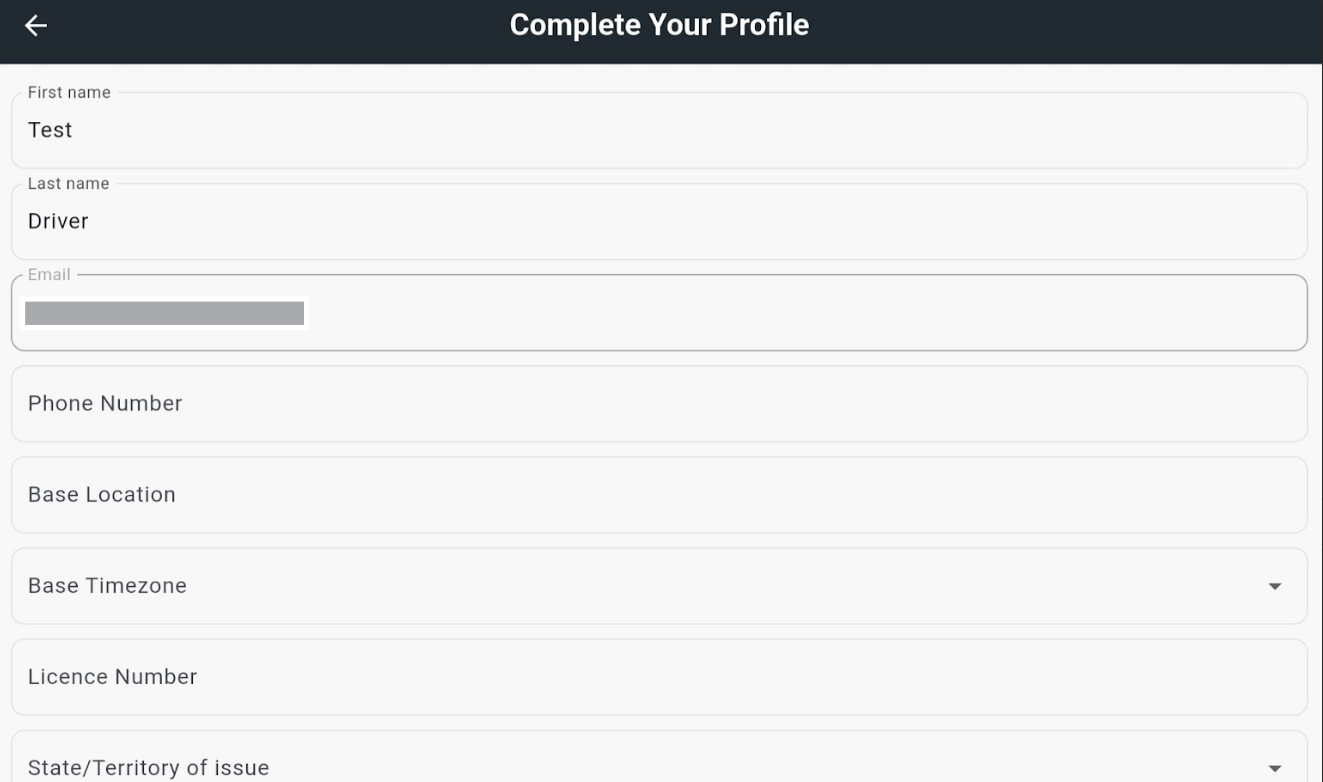
When logging in for the first time, you will need to provide further information such as your Mobile Number, Base Location and time zone, Record Keeper location, license number and state of issue. These details can always be changed/updated from the Profile screen in the app.
After updating your details & verifying your phone number via an One-Time SMS code, you can proceed to starting a shift.
Please Note: When logging into the Netcorp EWD a request is made to other EWD providers systems to retrieve any past work & rest entries. This is to ensure that the Netcorp EWD is able to inform the driver of any work or rest due in order to maintain a compliant electronic work diary. The information used to check for this information includes your Licence state of issue, Licence Number and Date of Birth.
It is the responsibility of the driver to inform their Record Keeper of any changes to these details for the last 28 days as this may affect the ability of the EWD to obtain past work history.
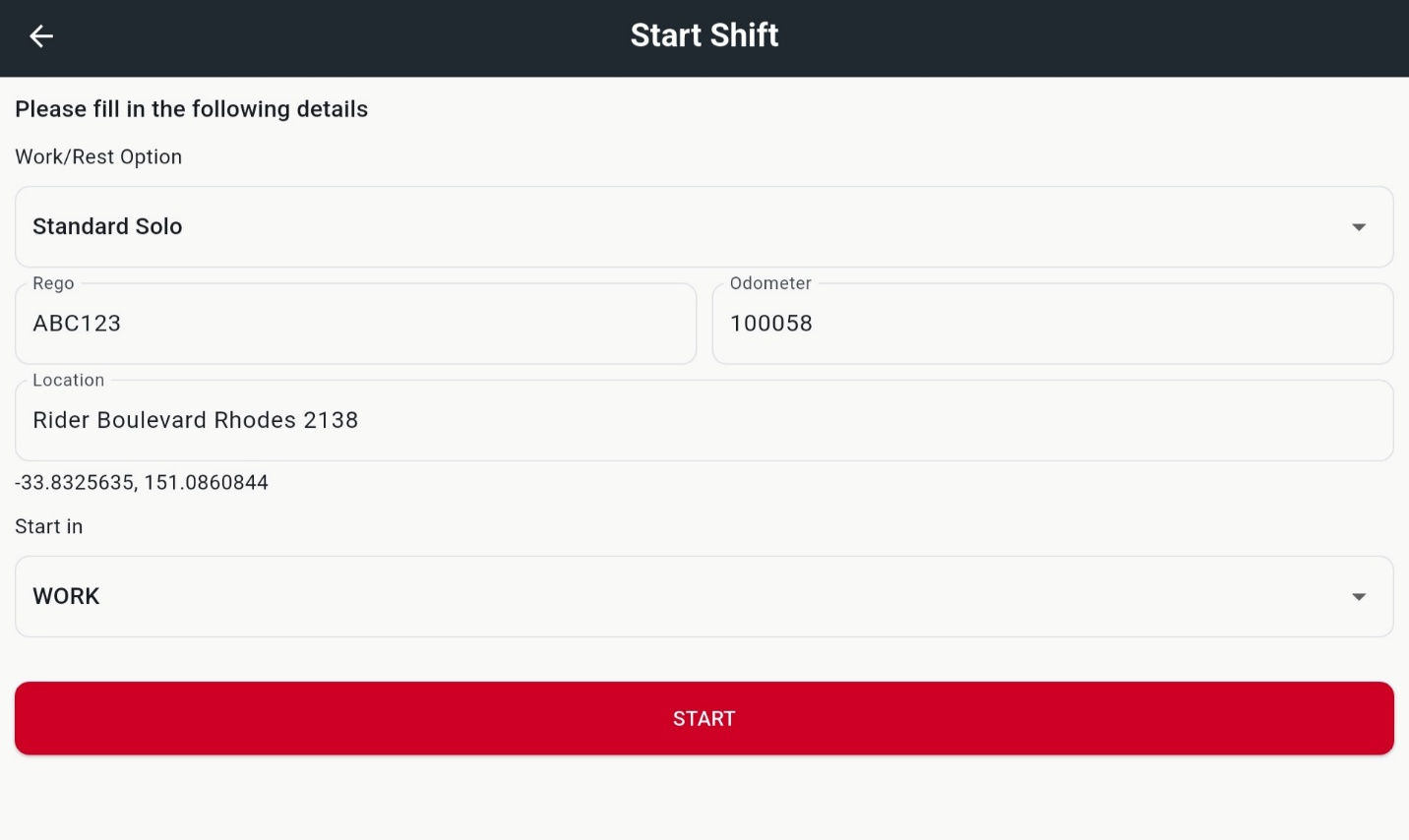
You can start a shift or view your existing shift from the Work screen.
To start a new shift on the tablet, press Start Shift.
Press on each field to select options from a drop-down menu or to enter details manually (E.g. Odometer reading, Rego etc.) You may start your shift in the work or rest state.
Once a Work/Rest Option is selected, it will apply to all work & rest entries for the entire shift until the shift is submitted.
BFM rulesets require a BFM approval ID.
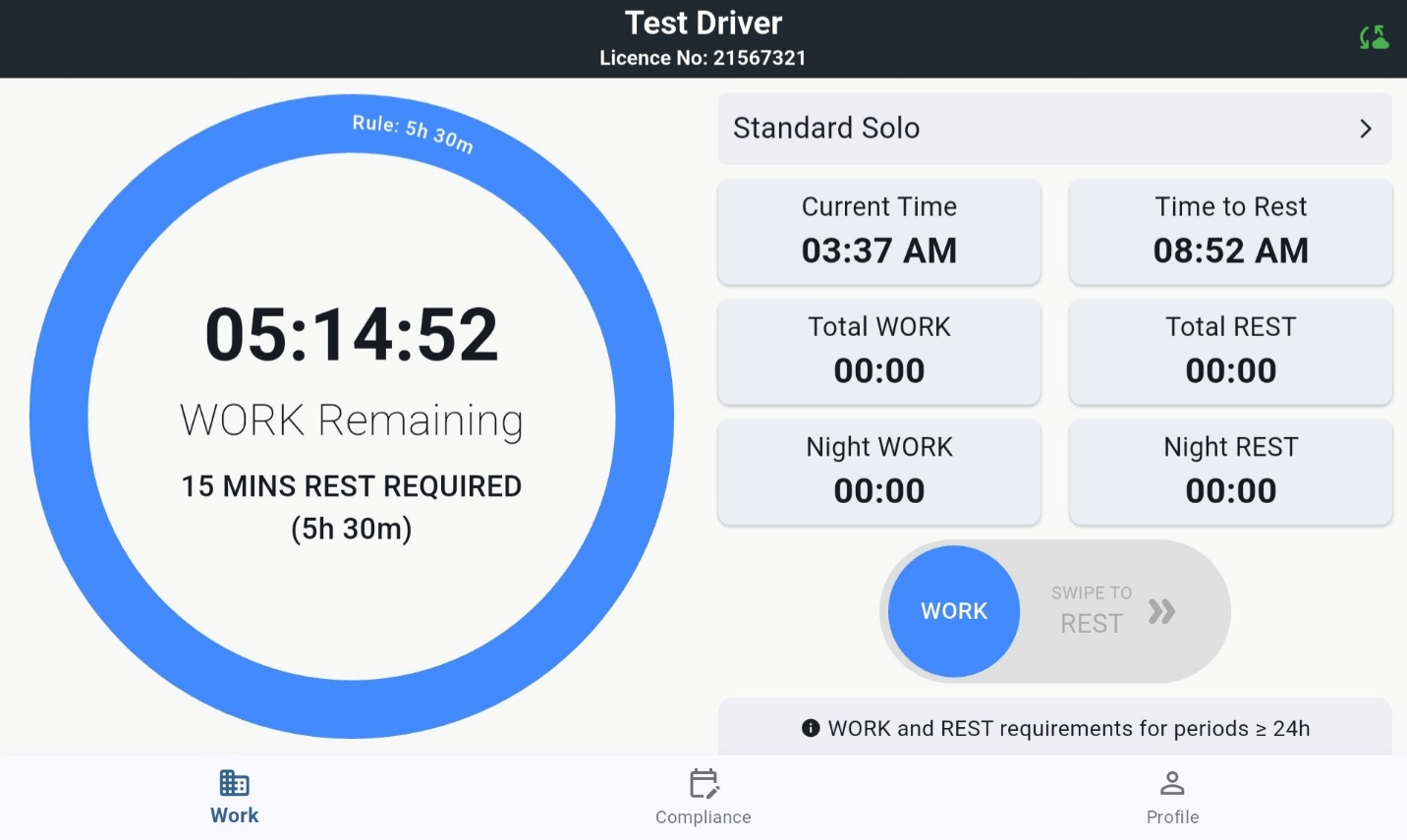
Once you start the shift a time circular graph will appear accompanied by a set of timers. The circular graph displays any period of 24 hours or less. It will always prioritise displaying the period that is ending soonest and has not had the sufficient rest required.
Additional timers will display the:
- Current Time of the driver’s base time zone
- Time remaining till rest is due
- Total work for the current shift
- Total rest for the current shift
- Night work and rest for the current shift
Rest alerts will display on the work screen and will appear as a blue pop-up at the bottom of the screen. It will warn of upcoming rest due when 1 hour of work remains for the period. It will continue to warn the driver every 10 minutes until rest is taken, or a potential non-compliance event occurs.
When a potential non-compliance event is detected, it will display in red at the top of the work screen. It will continue to display for the remainder of the period until the shift is submitted.
To start a rest break, move or press the slider from Work to Rest. You will need to enter the Odometer reading. The location will be prefilled but can be changed, comments are not required but may be added.
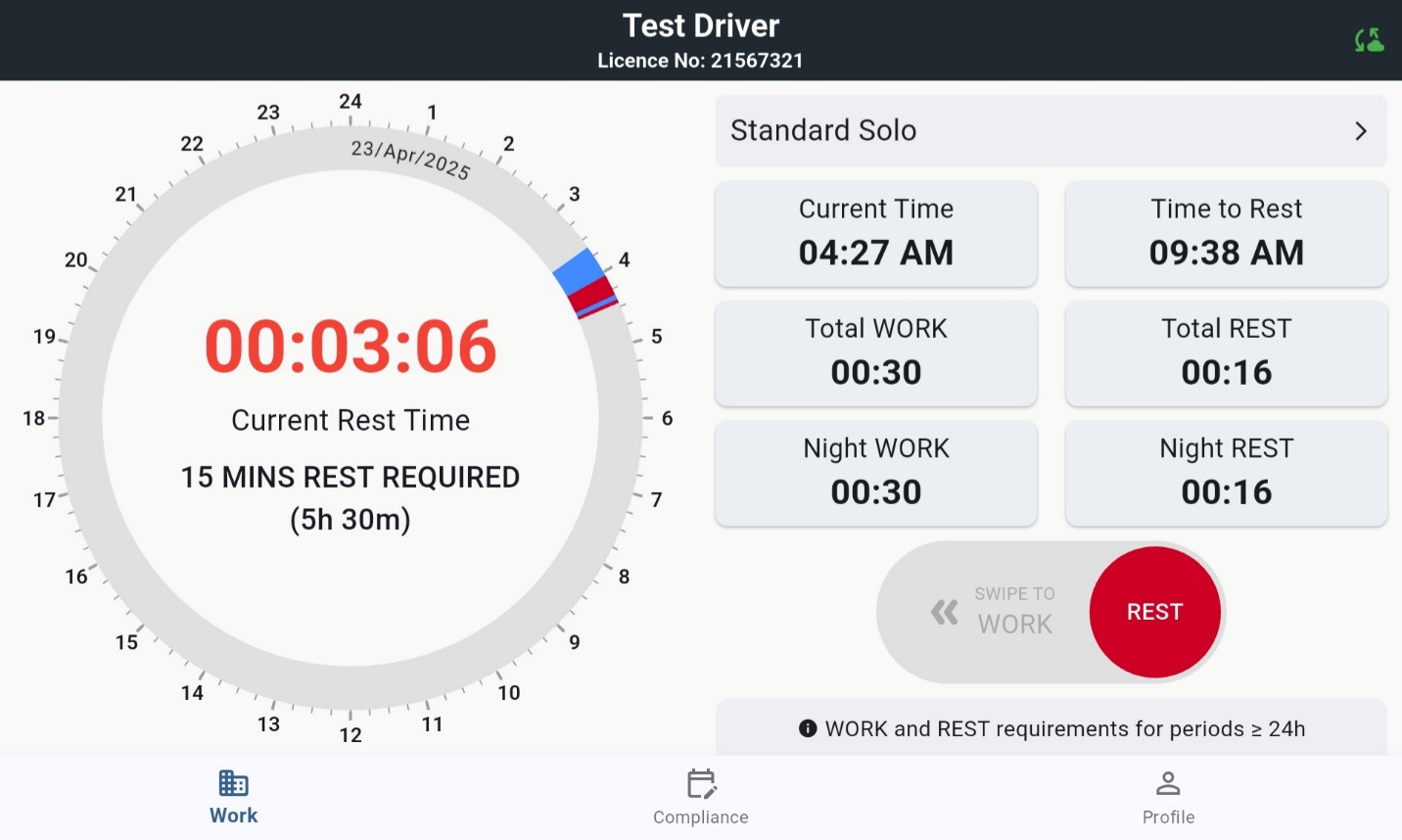
When in rest mode, the circular graph will display a 24-hour clock face, time in work is coloured blue and rest is coloured red. In the centre of the graph it will display a counter for the current rest break, below that it will show the required rest for the current period. When you are ready move the slider back to work or click on Check/Submit to proceed to submit the shift.
Starting a Two-up Shift
If a two-up work/rest option is selected you will need to enter the second driver’s Name, licence number, licence state of issue & BFM approval ID if applicable. You will need to confirm the second driver’s details are correct by confirming the two-up driver declaration. Only one driver can be logged in at a time. If both drivers will be using the same device each driver must log out to allow the other driver to login and make work & rest changes.
If you have missed a work/rest entry for your shift you can add or edit a work/rest entry.
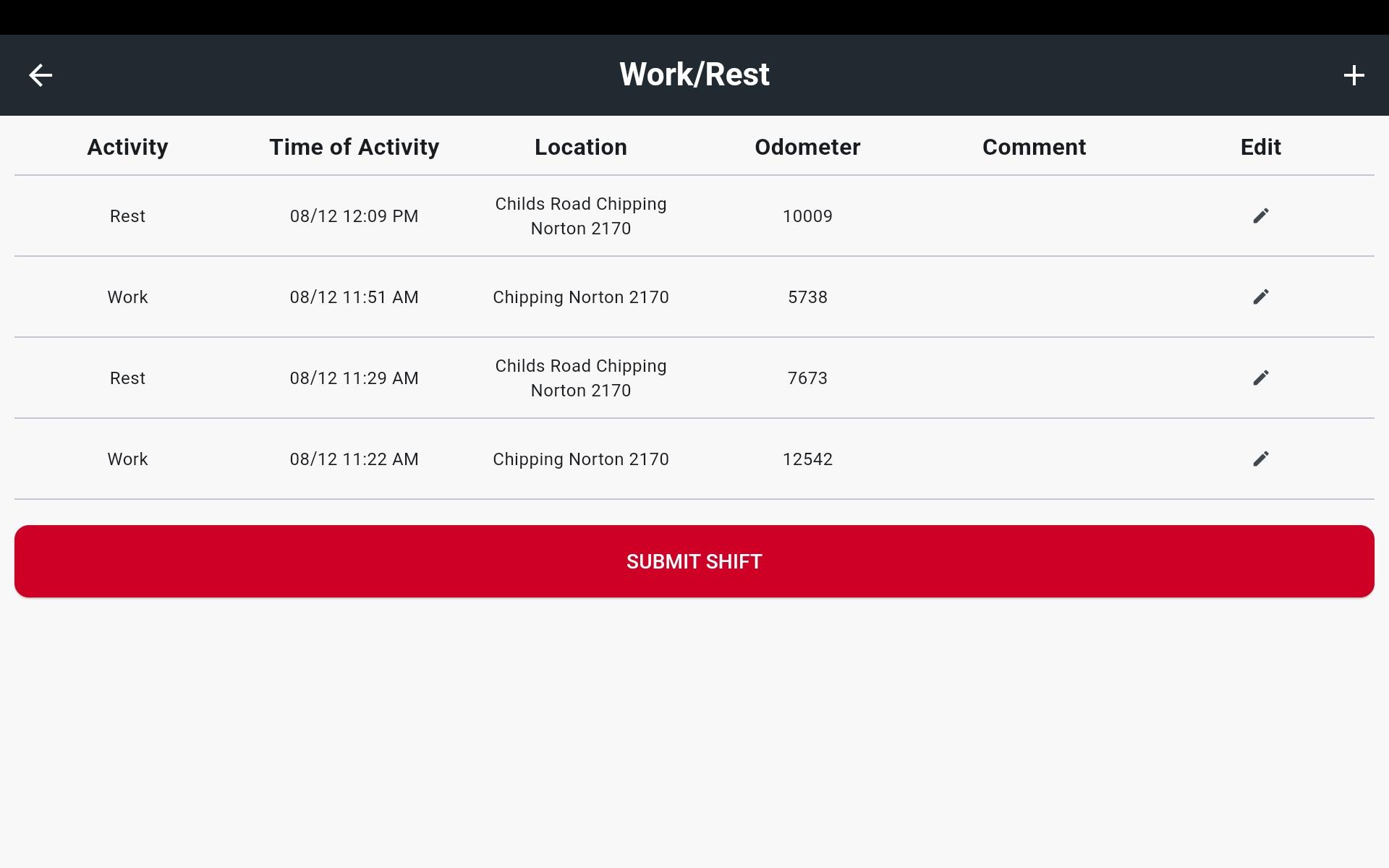
From the Work screen press the Check/Submit button. It will display all work & rest entries for your current shift in a table.
Pressing the Pen icon in the Edit column will allow you to edit the entry. Start time, Odometer & Location can be changed.
All changes must be accompanied by a comment as your reason for the change.
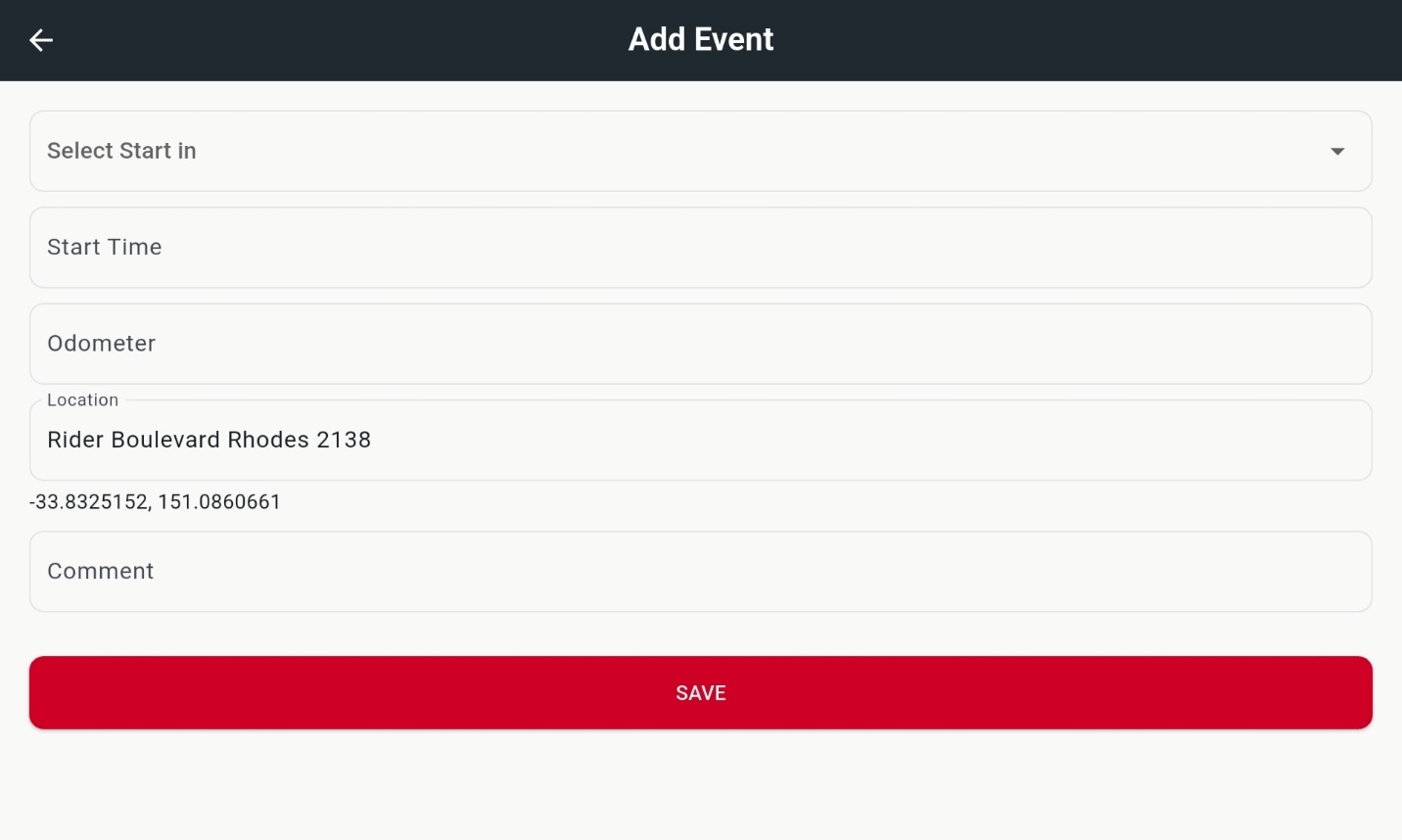
To add a work/rest entry press the + icon in the upper right, select the type of activity, start time, odometer reading, location and comment then press Save to create the entry.
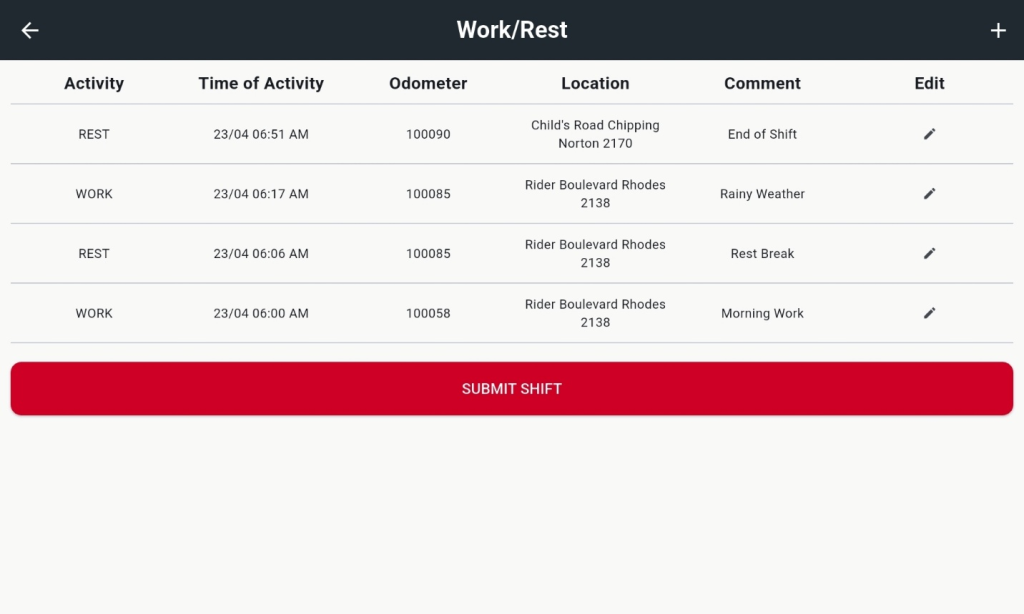
When you are ready to submit your shift press Check/Submit from the tablet screen then Submit Shift you will need to enter your password to confirm you agree to the declaration the press Confirm Submission to complete the process.
IMPORTANT: Once the shift has been submitted you will not be able to change/modify the work/rest entries.
To update any details for your profile, you can notify your Record Keeper to update your profile. It can also be done via the EWD app by navigating to the Profile screen.
At the top of this screen will be your name and Unique Driver Identifier, press this to view or edit your details. Click Save at the bottom of the screen to save the changes otherwise press the back button in the upper left to cancel any changes.
From the Profile screen clicking Theme Mode allows you to change the colour theme of the app to System default, Light or Dark mode to reduce eye strain.
The WORK and REST requirements for periods ≥ 24 hours are also displayed.
24-hour Period: Monitors WORK & REST compliance over a 24h period.
7-day Period: Monitors WORK & REST compliance over a 24h period.
14-day Period: Monitors overall compliance across a two-week interval.
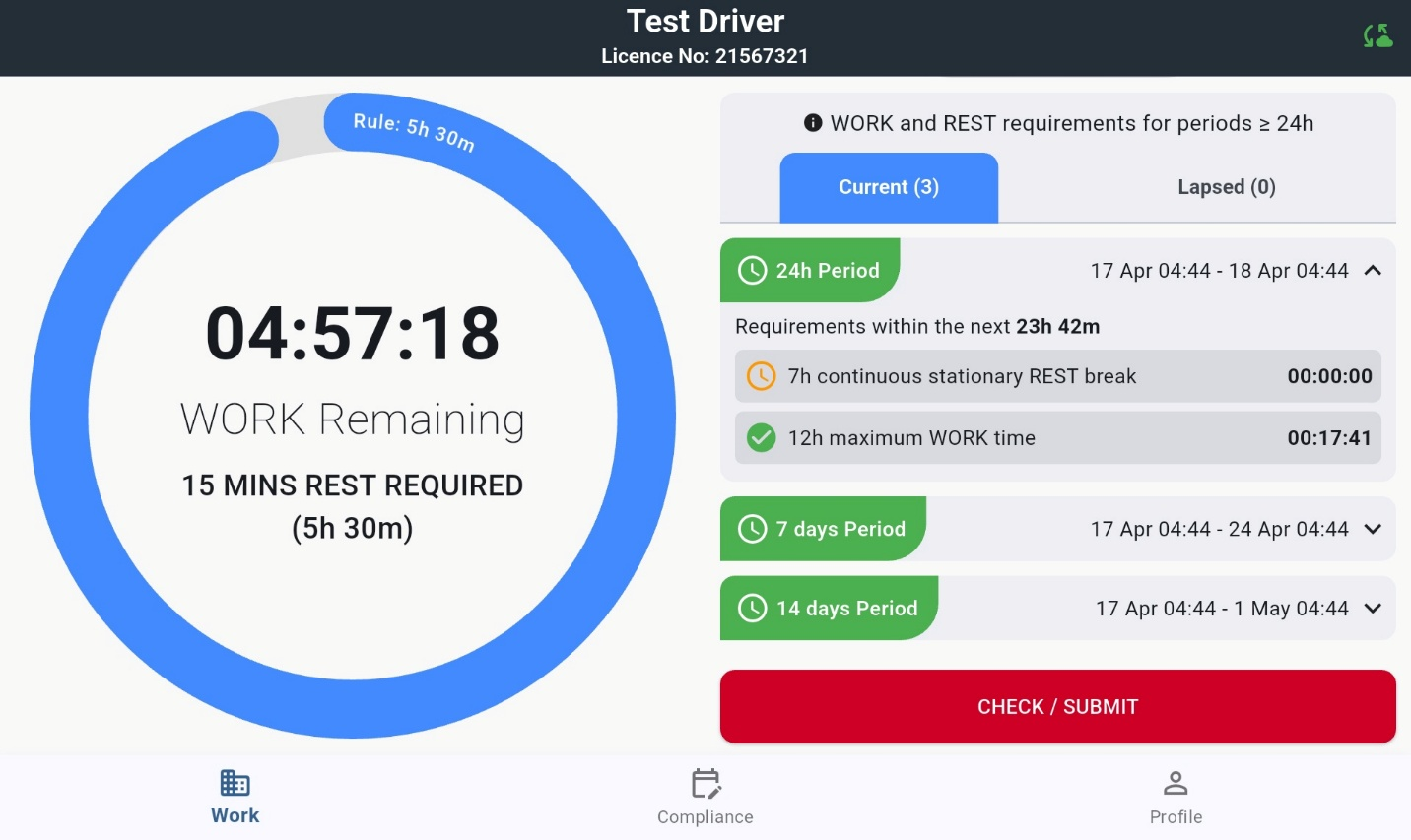
The Netcorp EWD app is designed to synchronise with our servers every 15 minutes. When synchronisation is successful you will see a green sync icon in the upper right of the screen.
If the device you are using loses network connectivity the sync icon will change and turn red to indicate it is failing synchronisation. This may occur when travelling in areas with poor cellular reception.
You need to ensure your device can re-connect to the internet either by using a cellular network or using Wi-Fi to resynchronise your shift data with Netcorp’s EWD servers. The EWD is designed to resynchronise automatically once the network connection is re-established, but you can also press on the sync icon to force a re-sync.
If synchronisation continues to fail you must stop using the device immediately. Either login to another device to transfer your last synchronised work & rest entries to the new device or copy them into a written work diary.
If the device the Netcorp EWD app is installed on is running low on memory (<50MB of space remaining) a red warning will appear on the active shift screen above the timers stating, “Critical Storage Usage”.

To clear this message, you must free up space on the device by uninstalling unused apps or deleting unnecessary data so the EWD can continue to record work & rest entries. If you are unable to remove enough data to clear the warning message you should submit your shift immediately and switch to a written work diary for the remainder of your shift. You should also inform your Record Keeper that your device is running low on storage space as it will likely need to be upgraded in order tomaintain a compliant electronic work diary.
When the device the Netcorp EWP app is installed on loses network connectivity an orange warning will display on the active shift screen above the timers stating “Communication Failure”

This can be a normal occurrence in remote areas as the mobile network may not be accessible in all locations. The device can continue to be used, and the warning will clear once it regains network connectivity. If the device has not regained network connectivity for more than 24 hours the warning will change to red and display the words “Critical Communication Failure”. You should attempt to connect the device using Wi–Fi if your device supports it to synchronise your current shift with the Netcorp EWD server. You should also investigate why the device is unable to connect to the mobile network. Check the SIM card is not damaged and is correctly inserted into the device’s SIM card slot. If the device is unable to regain network connectivity you must switch to a known working device with the Netcorp EWD installed, your last synchronised active shift entries will automatically populate in the new device. Otherwise, you must copy your work & rest entries into a written work diary and notify your Record Keeper as soon as possible.
In the case where your device’s display can no longer be used you may switch to a known working device with the Netcorp EWD installed. Providing the previous device was not suffering any communication failures your work & rest entries will re-synchronise on the new device and you will be logged out from the previous device. Alternatively, you may switch to a written work diary until you are able to obtain a working device. Contact your Record Keeper to report the issue with your device, they will also be able to view your last synchronised work & rest entries from the Netcorp EWD website so that they may be copied over to your written work diary.
If your device loses power, try connecting it to a suitable power source to recharge the device. If the device fails to regain charge you should either switch to a known working device with the Netcorp EWD app installed, your work & rest entries will re-synchronise upon login or use a written work diary. Notify your Record Keeper of the device failure immediately, they will be able to view your last synchronised work & rest entries from the Netcorp EWD website so that they may be copied over to your written work diary.
Faults and malfunctions should be reported to Netcorp via the EWD app. Click on “Profile” on the navigation bar at the bottom of the screen.

Enter all relevant information into the text field and click “Submit” when done.
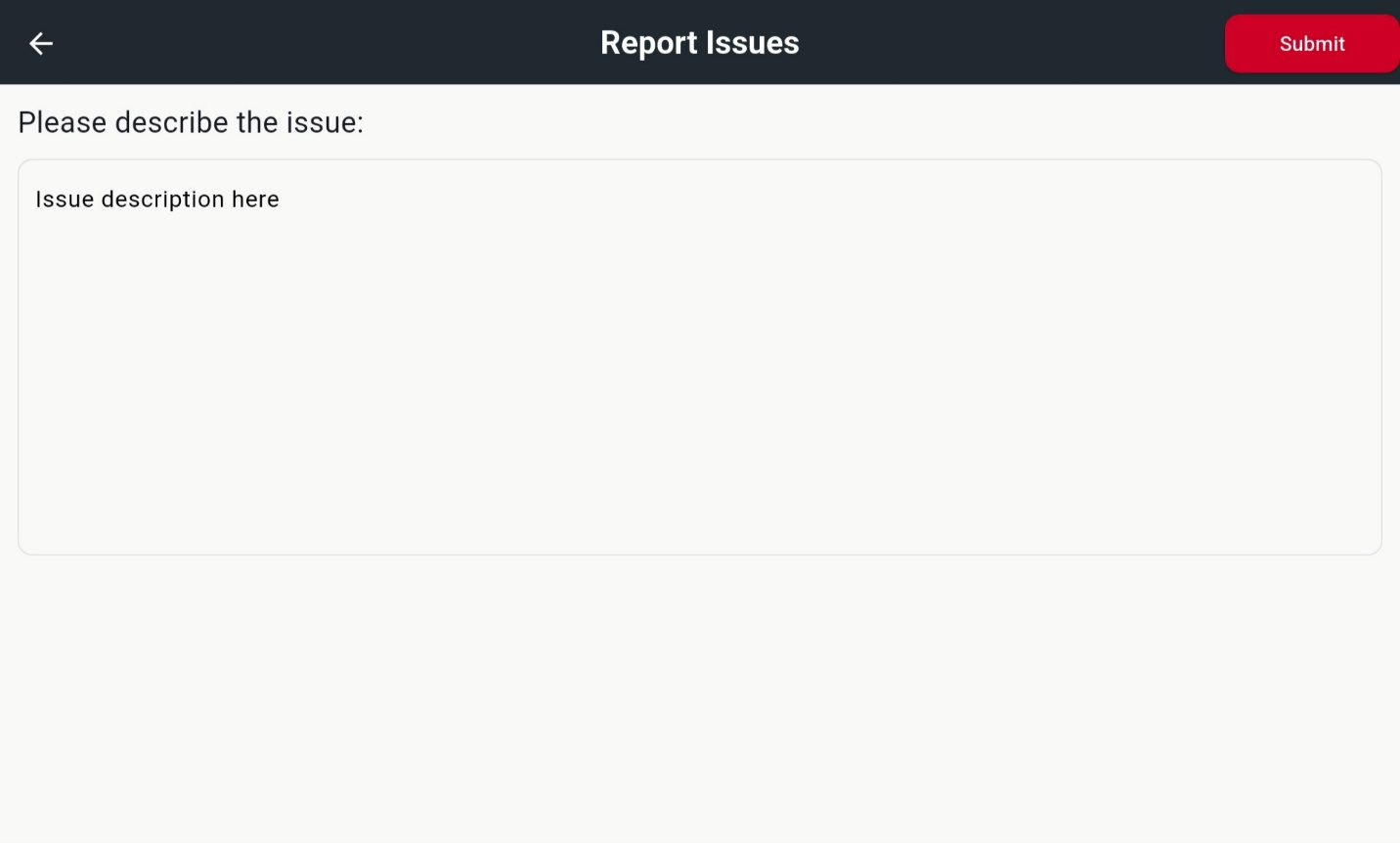
Provided the device has an active network connection the report will be submitted, otherwise an error will display indicating the report cannot be submitted due to lack of network connectivity
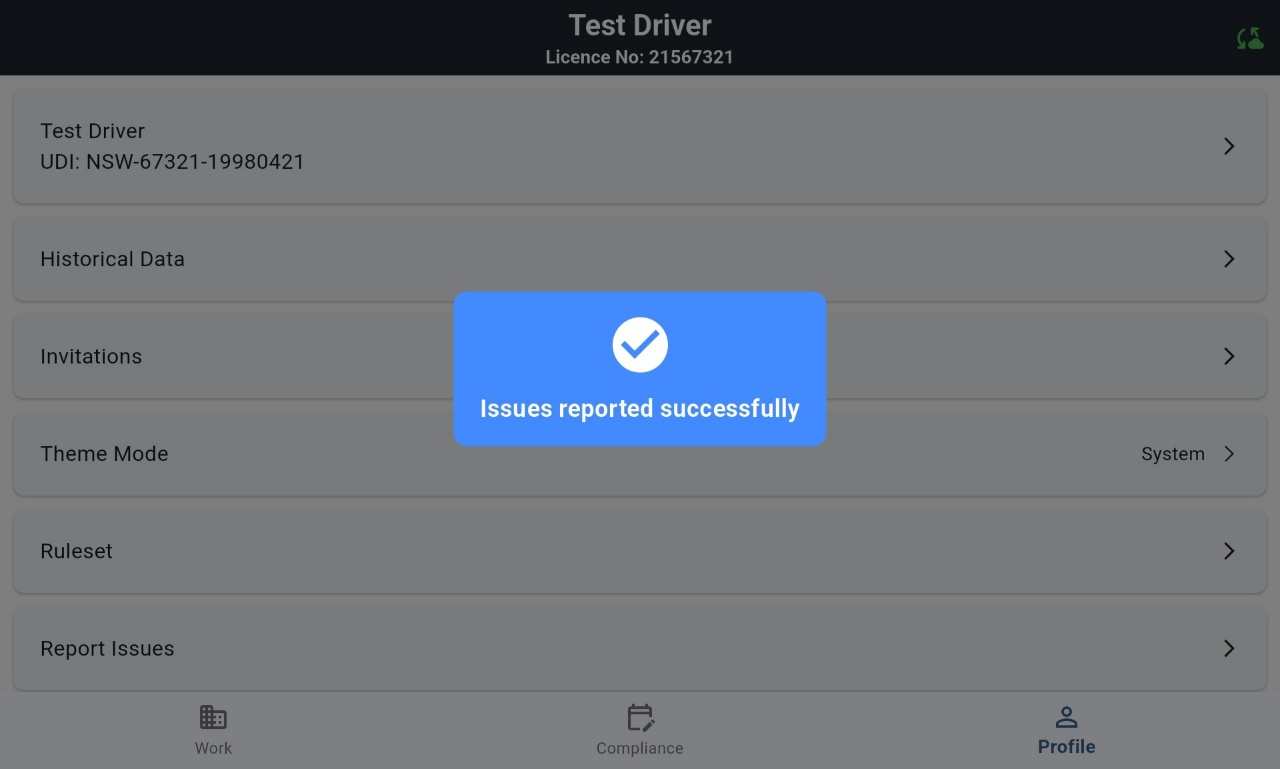
If the device is unable to obtain a network connection you should notify your Record Keeper immediately as faults can be submitted via the Netcorp EWD website.
Alternatively faults and malfunctions can be reported to Netcorp by the methods provided below:
Email: ewdfaults@netcorp.com.au
Phone: 1300 722 127 (option 1), Mon-Fri 8am-5pm AEST
Reports of EWD faults and malfunctions should also be sent to the NHVR.
They have a dedicated form on their website https://www.nhvr.gov.au/contact-us.
They can also be reached on:
Email: info@nhvr.gov.au
Phone: 13 64 87